AlaryIQ Intelligent Engine Analytics

N000XX Flight

Upload Engine Monitor Log

Choose the aircraft for this upload

Uploading a file does not change aircraft automatically until you confirm the target here.

Review Monitors

Aircraft review settings

Choose which automated review monitors can create flags and review cards for this aircraft.

Active
Muted 0
Scope Flags, cards, timeline markers
Profile Aircraft

Aircraft Profile

Edit aircraft

Tail New aircraft
Aircraft Make and model
Engine Engine details
Layout 1 engine

Identity

Powerplant

Propeller & Fuel

Instrumentation

Permanent Delete

Delete aircraft?

This permanently removes the aircraft and its associated data.

This cannot be undone. The aircraft profile, flight logs, database records, generated reports, analysis artifacts, and locally stored upload files will be removed.

Permanent Delete

Delete flight?

This permanently removes the flight and its associated data.

This cannot be undone. The source file, database records, generated reports, analysis artifacts, and trend snapshots will be removed.

Turn engine monitor logs into clear review notes.

Turn dense engine monitor exports into readable notes and reports for maintenance conversations, owner review, and flight-by-flight comparison.

Advisory screening only. AlaryIQ does not replace mechanic inspection, manufacturer guidance, or pilot judgment.
Sample Flight Review
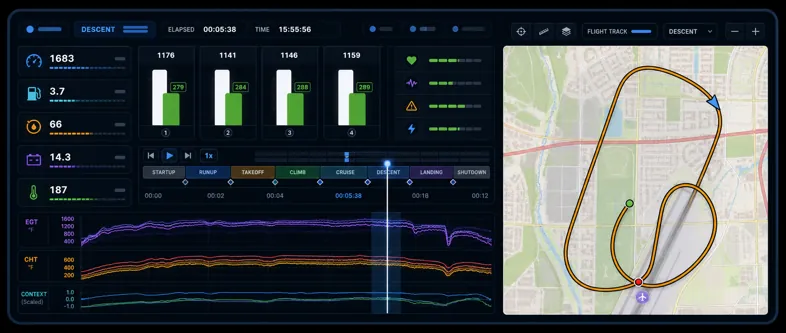
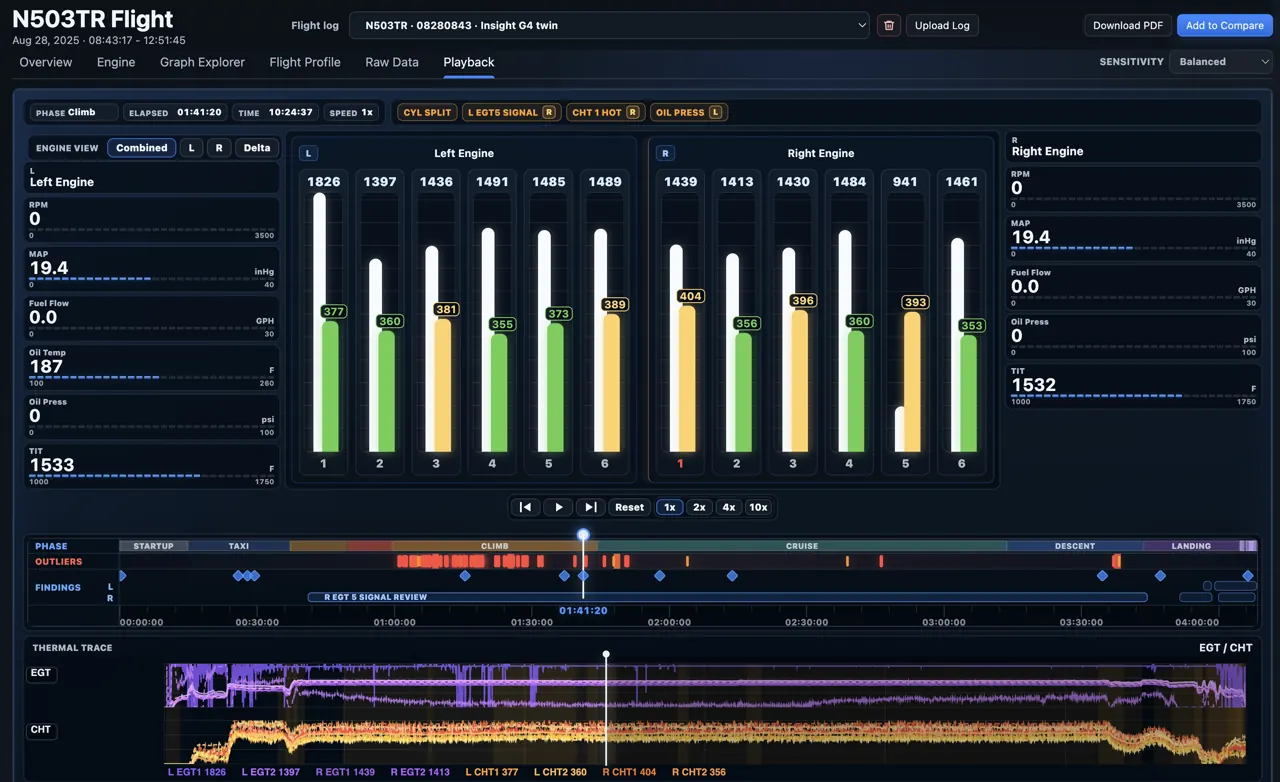
AlaryIQ playback screen showing twin-engine EGT and CHT review data
Twin-engine playback Phase rail, findings, and thermal traces

Phase-aware charts

Review engine traces in the context of startup, runup, takeoff, climb, cruise, descent, landing, and shutdown.

Cylinder review cues

Compare EGT and CHT behavior by cylinder, then separate operating context and sensor quality from patterns worth discussing.

Advisory reports

Create readable review summaries with supporting evidence, confidence language, and next-step context for a mechanic conversation.

Trend analysis

Track CHT, EGT, fuel flow, oil pressure/temp, electrical behavior, and recurring findings across flights.

Data quality checks

Flag missing sensors, stuck probes, noisy traces, time gaps, or files that need review before drawing conclusions.

Supported monitors

Built for the logs aircraft owners already have.

AlaryIQ normalizes common piston-aircraft engine monitor exports into one review workspace, including Garmin, JPI, Insight, and Electronics International formats.
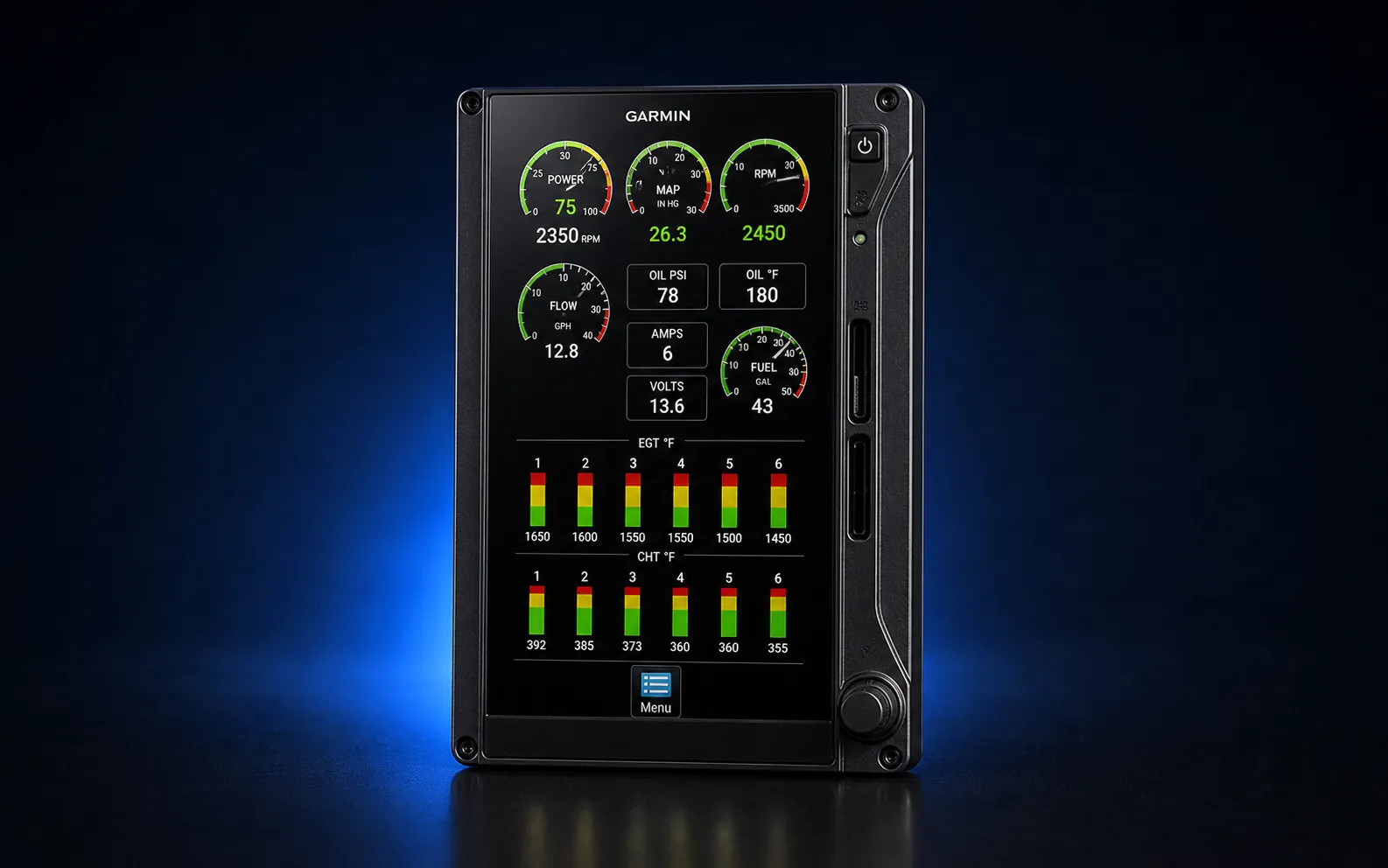
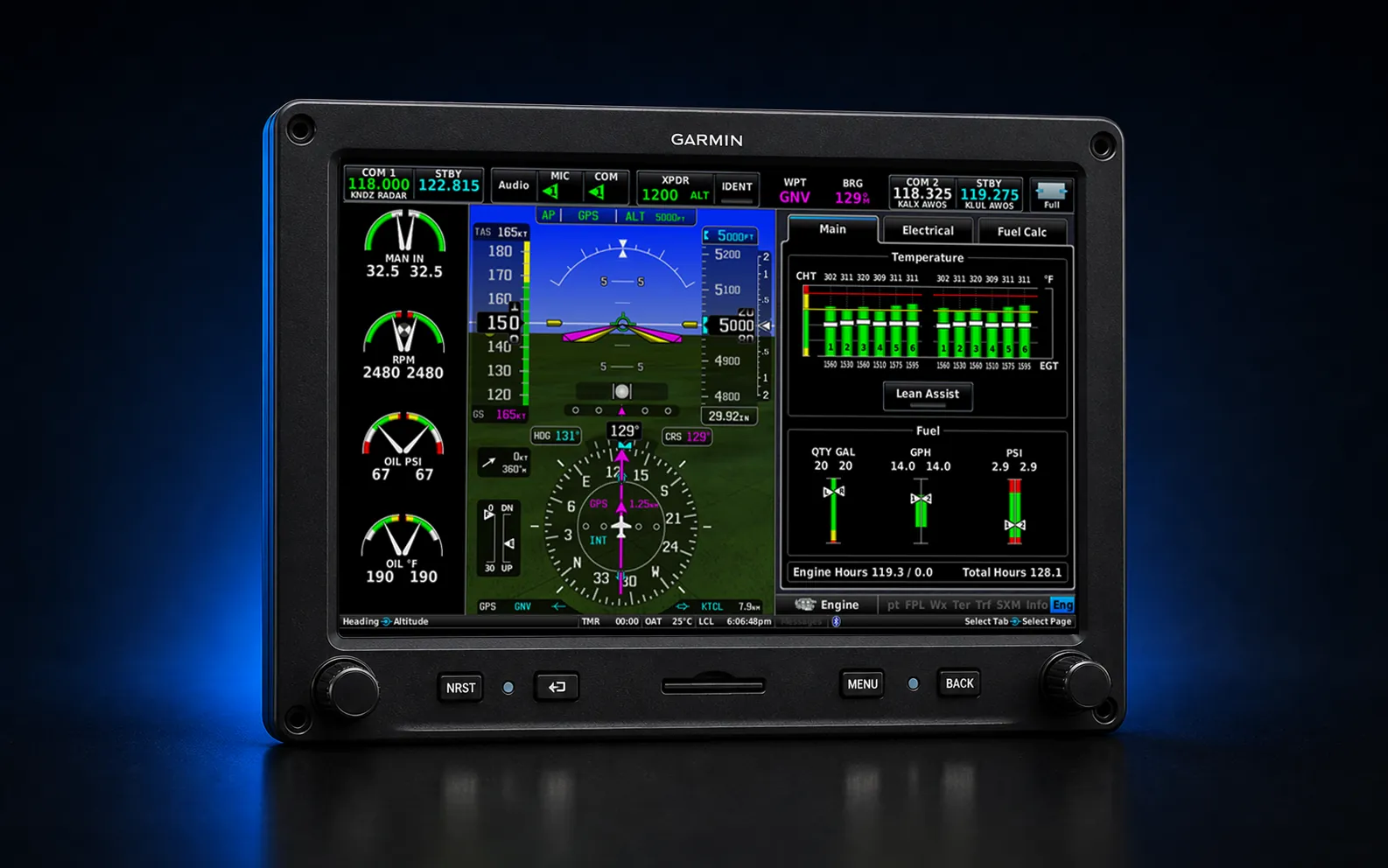
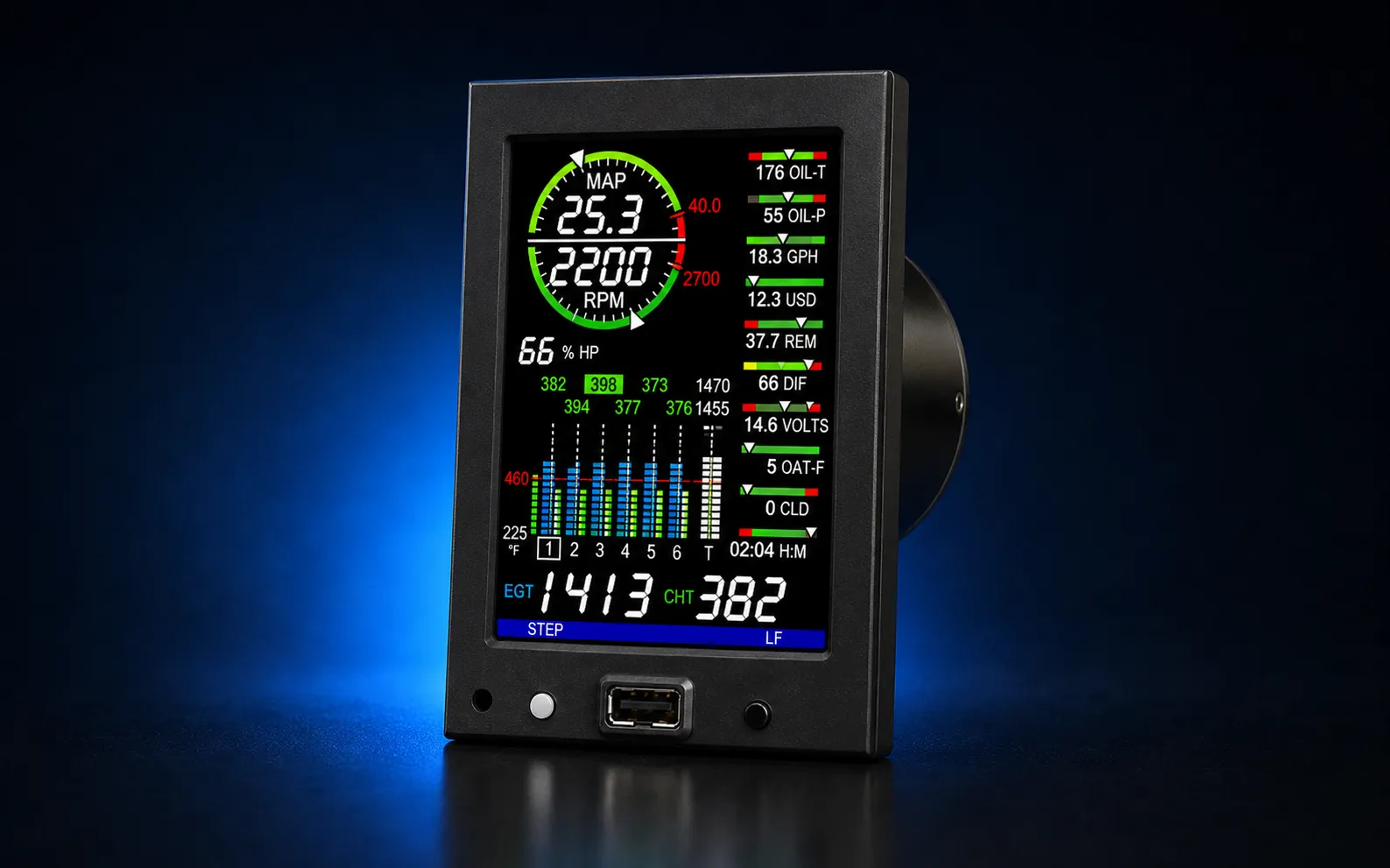
Garmin EIS TXi-style engine indication display
Garmin EIS / TXi
Garmin G3X-style display with engine information
Garmin G3X
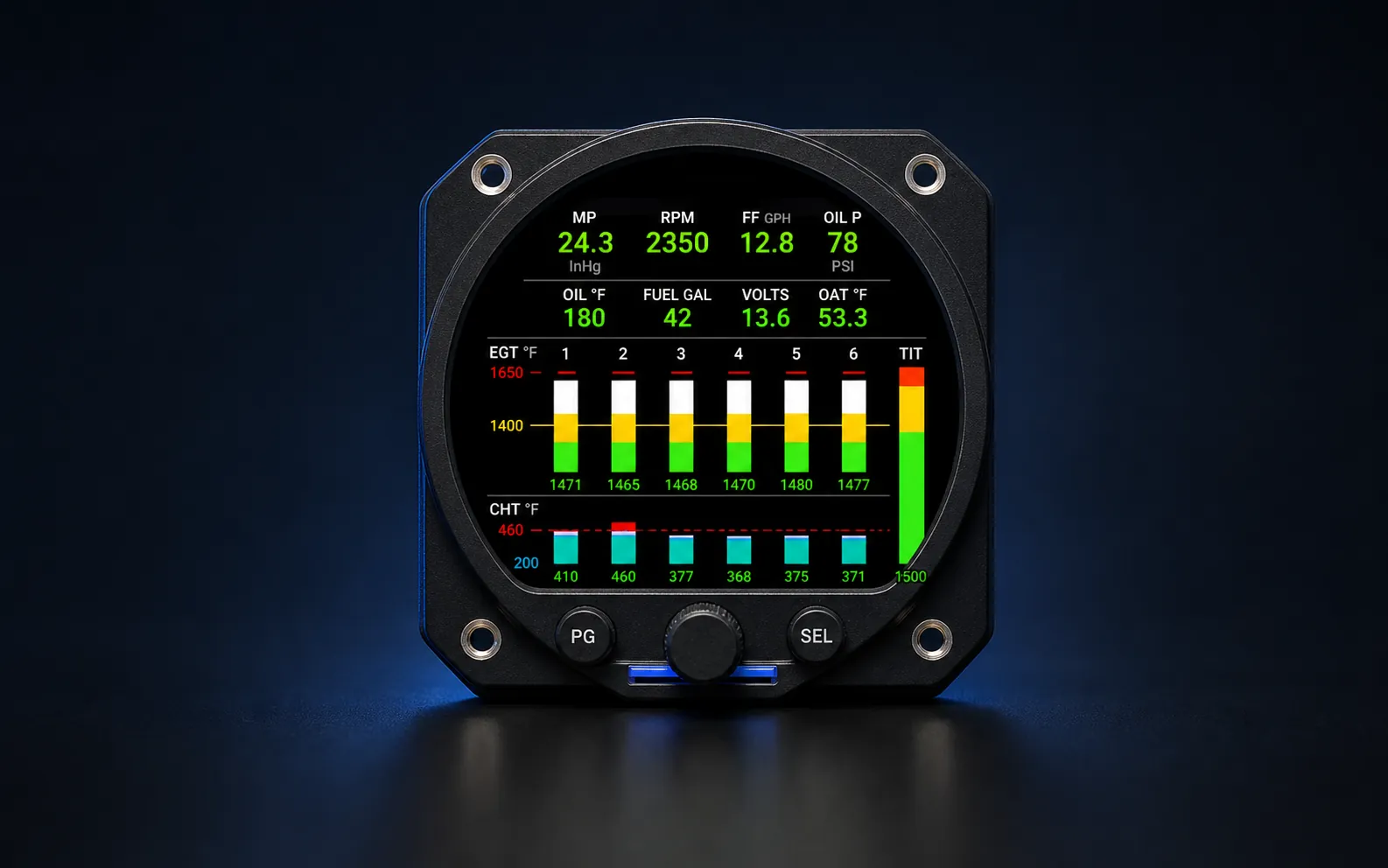
JPI EDM-style engine monitor
JPI EDM
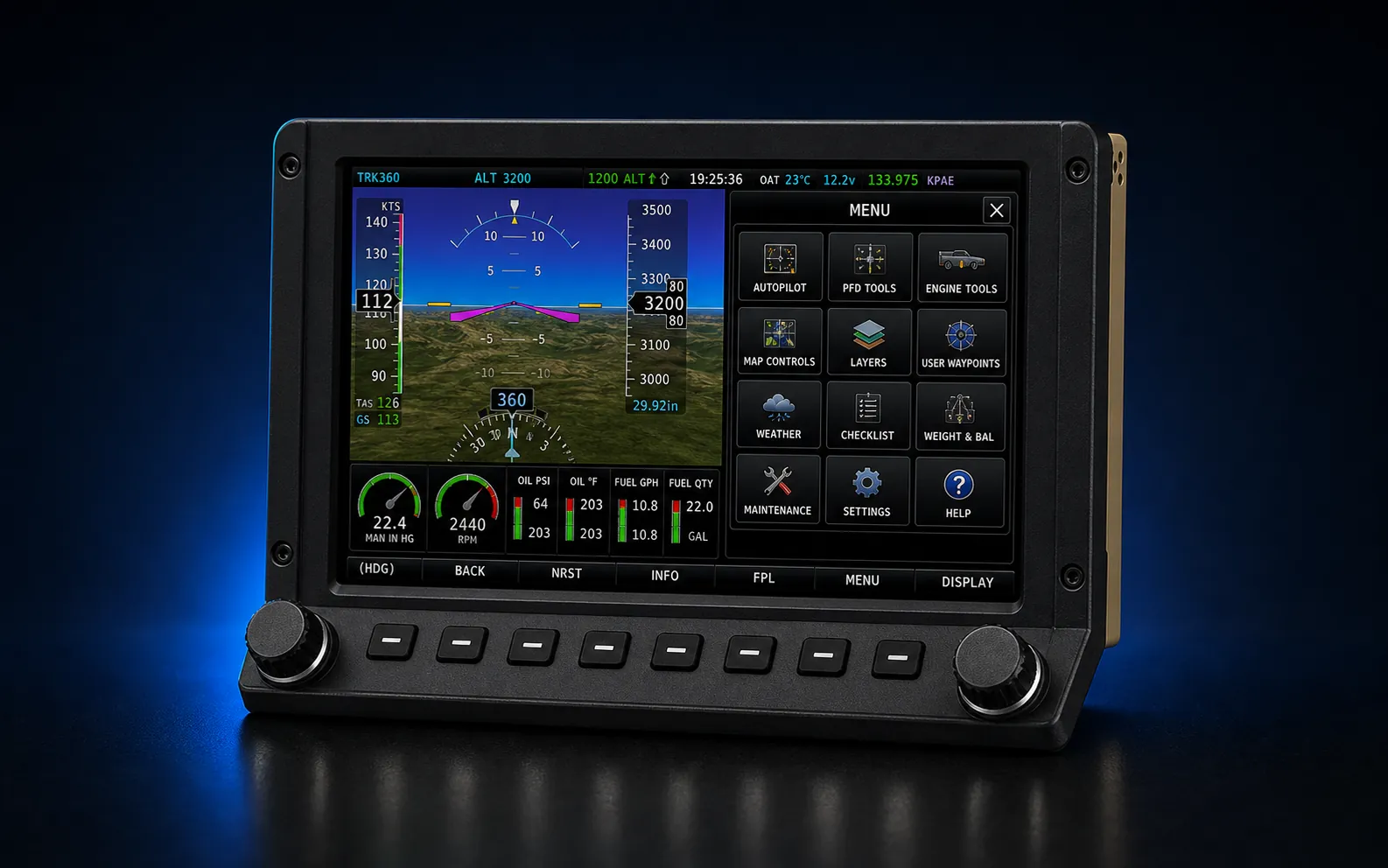
Dynon HDX-style glass cockpit displays
Dynon HDX
Insight G4-style graphic engine monitor
Insight G1-G4
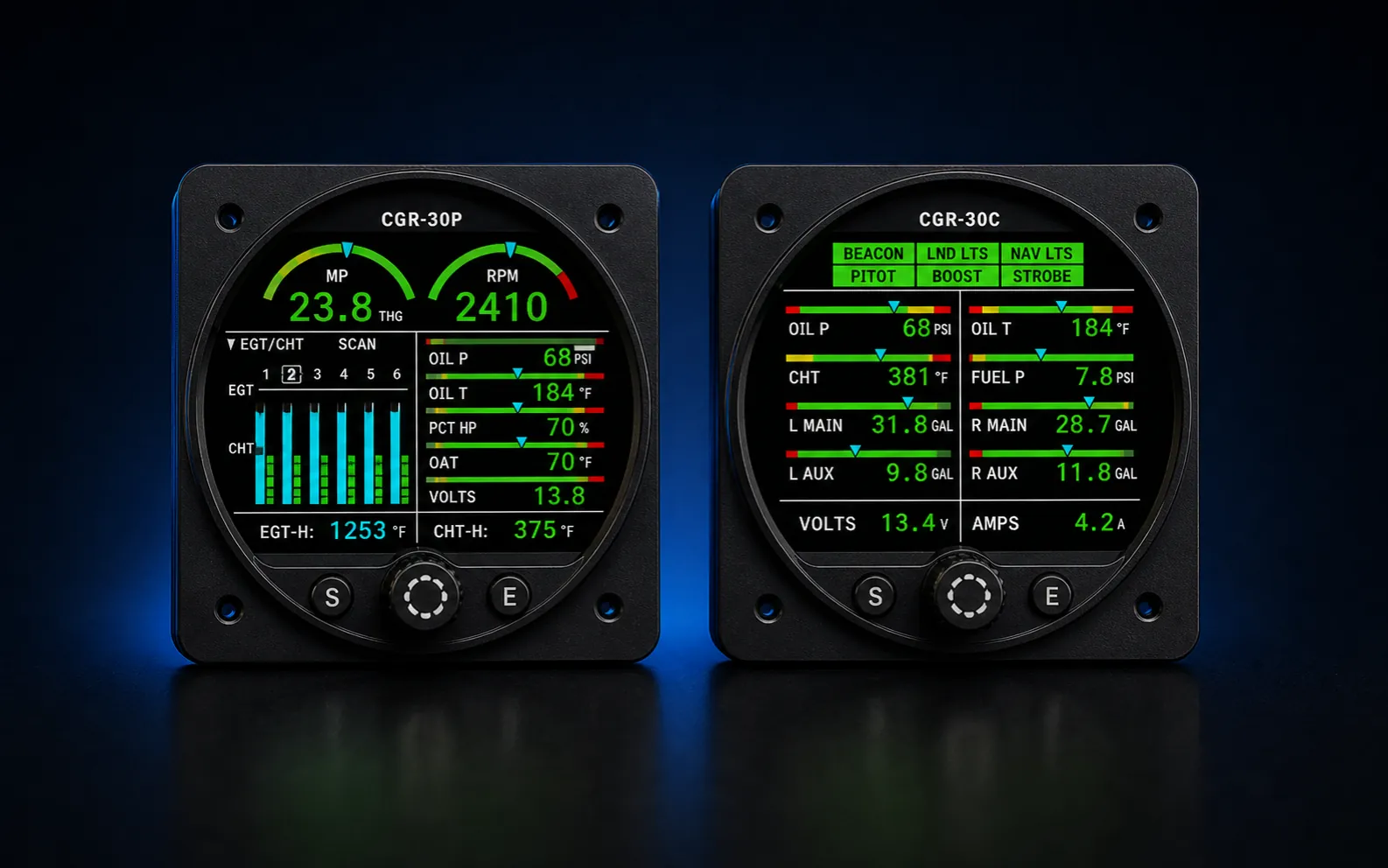
Electronics International CGR-style engine monitor instruments
EI CGR / MVP
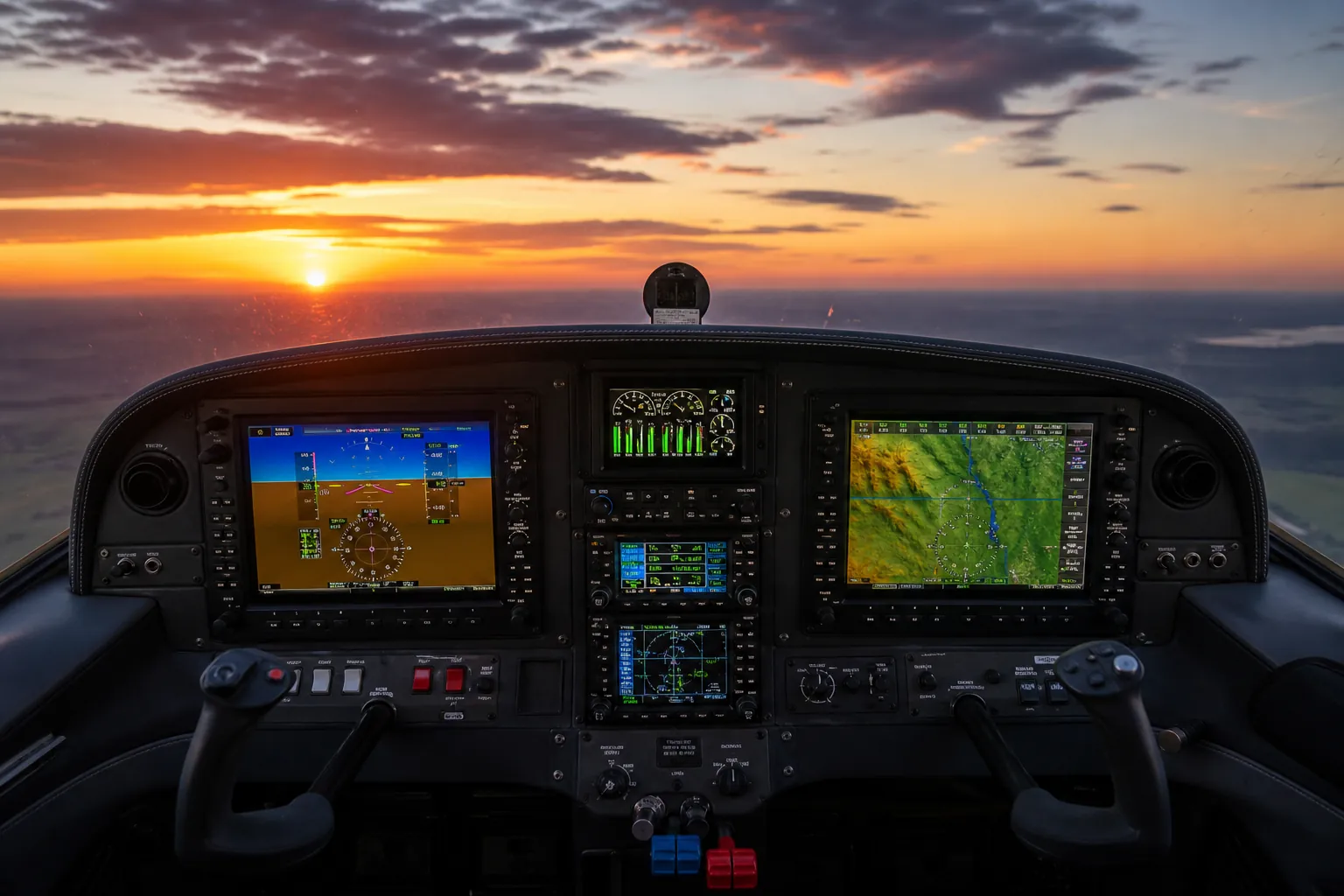
Glass cockpit with engine monitoring displays
More formats on request

Pricing built around aircraft, reports, and trust.

AlaryIQ turns engine-monitor data into engine-health evidence, trend history, and maintenance-ready reports you can act on with confidence.

Engine-health evidence AI-assisted analysis of flight data.
Trend history See patterns over time and before they bite.
Maintenance-ready reports Shareable PDF evidence packets.
Sample flight review N000XX · 04250723
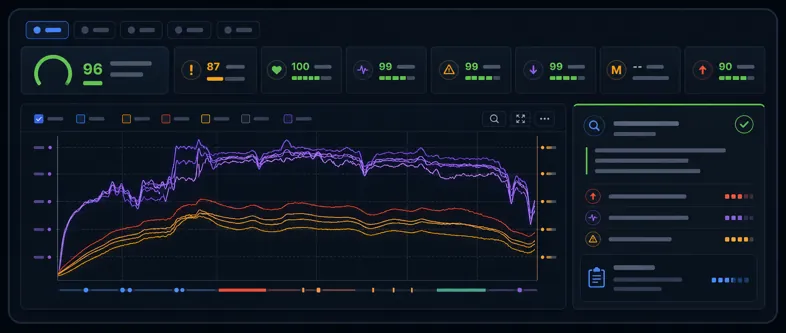
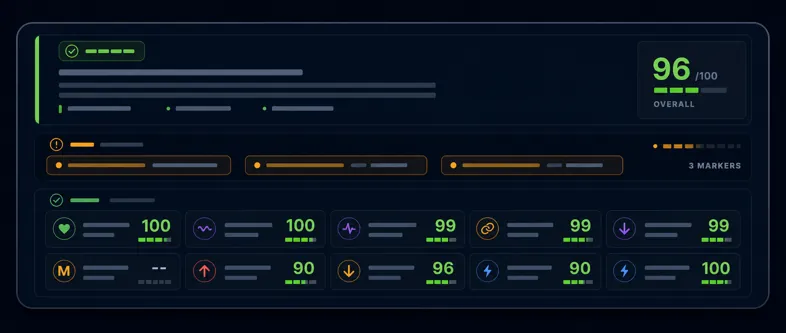
AlaryIQ dashboard overview showing engine health scores, review context cards, and key engine parameter traces

Owner plans

Choose by aircraft count, log history, and report depth.

Plan selection is informational for now. Posted pricing reflects introductory offer pricing while we're still building out the product. Stay tuned!

Free

Try AlaryIQ with one aircraft and two logs.

$0/year
  • 1 aircraft
  • Up to 2 logs
  • 1 sample AI summary
  • Basic trend views

Owner Basic

Great for single-aircraft owners.

$49/year single-engine

Multi-engine: $79/year

  • 1 aircraft
  • 25 logs
  • AI summaries and PDF reports use credits
  • 50 analysis credits included

Owner Pro

For serious annual and prebuy workflows.

$149/year single-engine

Multi-engine: $179/year

  • Up to 3 aircraft
  • 200 logs per aircraft
  • AI summaries and PDF reports use credits
  • 300 analysis credits included
  • Annual/prebuy packet mode

One-time report

Pre-Buy Engine Data Report

A focused one-time report for a buyer, seller, mechanic, or broker who wants a serious engine-data package before a purchase decision.

One-time purchase
$99single-engine

Multi-engine: $149

  • One aircraft pre-buy review
  • 30 days of platform access for that aircraft
  • Up to 50 flight logs
  • AI summary and multi-flight trends
  • Maintenance-ready PDF report
  • Shareable review link

This is like a Carfax-style engine-data review: a buyer can upload logs, or a seller can provide this report to potential buyers via a .pdf and shareable link.

In development

Fleet accounts are not available yet.

AlaryIQ is building centralized aircraft management, team access, and scalable reporting for clubs, schools, shops, and multi-aircraft operations.

Fleet Starter

$399/year

Up to 5 aircraft, 200 logs per aircraft, and 500 analysis credits.

Fleet Plus

$899/year

Up to 15 aircraft, 250 logs per aircraft, and 1,500 analysis credits.

Fleet Pro

Custom

Custom aircraft volume, branded reports, and parser support for larger operations.

Analysis credits

Use credits for AI summaries, PDF reports, and deeper packets.

Uploading logs, reviewing charts, and basic trend views do not use credits. Credits never expire.

5 credits

Detailed AI Analysis Summary

High-level overview of one flight.

1 credit

PDF Evidence Report

Export a maintenance-ready report for one flight log. If generated, the AI Analysis Summary is included.

100 credits

Annual/Prebuy Packet

Includes up to 50 flight-log trend analysis with AI Summary and PDF packet.

100 credits

$5.00

20 AI analysis summaries or 100 PDF evidence reports.

200 credits

$10.00

40 AI analysis summaries or 200 PDF evidence reports.

500 credits

$25.00

100 AI analysis summaries or 500 PDF evidence reports.

Can I choose a paid plan today?

Not yet. This page shows intended pricing while authentication and billing are still being built.

Do unused credits roll over?

The current pricing plan treats purchased credits as non-expiring.

Are findings maintenance diagnoses?

No. AlaryIQ provides advisory screening and evidence organization for qualified review.

FAQ

Questions about engine log reviews, answered.

AlaryIQ turns engine monitor exports into readable notes and reports. These questions explain what you can upload, what the review means, and how to use the results.

AlaryIQ maintenance dashboard displayed on a desktop monitor inside an aircraft hangar

What files can I upload?

The current parser work targets common piston aircraft engine monitor exports, including Garmin, JPI, Insight, and Electronics International style logs.

Does AlaryIQ diagnose engine problems?

No. It highlights review cues, operating context, and data-quality concerns so a qualified person can evaluate the aircraft with proper inspection and records.

What does phase-aware mean?

The app separates startup, runup, takeoff, climb, cruise, descent, landing, and shutdown so temperatures and pressures are read in the right flight context.

Can I compare multiple flights?

Yes. The workspace is being shaped around aircraft history, trend snapshots, and selected-flight comparisons to make repeat behavior easier to spot.

Who is this for?

Owners, pilots, shops, and analysts who want readable engine-monitor review notes without losing the supporting evidence behind each flag.

Can it replace my mechanic?

No. Treat AlaryIQ as a screening and communication tool. Maintenance decisions belong with certificated mechanics, manufacturer guidance, and aircraft records.

What does the report include?

Reports include readable review notes, supporting chart context, advisory findings, and source data references that help explain what the log shows.

Can I export or share the review?

Yes. Reviews can be exported as reports for maintenance conversations, owner records, and comparison across flights.

What if my monitor format is not supported yet?

You can request support by sharing the monitor make, model, export type, and sample file details so the format can be evaluated.

What makes this different from looking at raw charts?

AlaryIQ combines charts, context, review notes, and report-ready language instead of leaving every trace to be interpreted manually.

Does AlaryIQ work for twin-engine aircraft?

Yes. The workspace supports multi-engine review and can compare left/right, front/rear, or engine-indexed data when those fields are available in the log.

Will it tell me what repair to make?

No. AlaryIQ organizes evidence and review cues, but repair decisions belong with qualified maintenance professionals and aircraft-specific documentation.

How It Works

How to review an engine monitor log.

This page walks through the normal workflow: create or confirm the aircraft profile, upload a log, open the Dashboard, inspect the graph and findings, then use the supporting pages for history, trends, maintenance notes, and reports.

Dashboard overview with flight selector, health cards, graph traces, and review context
Begin each review from the Dashboard, but use the rest of the workspace to confirm the aircraft setup, upload history, trend context, and report output.

Quick Start

The review order that keeps the data understandable.

Use this order when you are reviewing a new flight. It keeps setup problems from being mistaken for engine behavior.

  1. Open Aircraft. Select the tail number you want to work with. If this is a new airplane, create it first.
  2. Check aircraft settings. Confirm monitor make/model, engine count, fuel type, turbo status, and engine labels before interpreting detections.
  3. Upload the log. Use Upload Flight Log, assign the file to the aircraft, and watch Uploads for parser status or errors.
  4. Open the flight. Go to Flights, open the imported row, and confirm the flight date, duration, and source monitor.
  5. Read the Dashboard from top to bottom. Start with the summary cards, then verify the finding in the graph, cylinder detail, and Review Context panel.
  6. Compare history before sharing. Use Trends and prior flights to decide whether the cue is one flight, a repeat pattern, or likely data quality.

Step 1

Set up the aircraft before reviewing the log.

The aircraft profile tells AlaryIQ how to interpret the file. A single-engine aircraft, a twin, a turbocharged engine, and different monitor models should not be reviewed with the same assumptions.

  1. Open AircraftStart from the aircraft workspace and choose the tail number you want to review.
  2. Select or create the aircraftUse the correct aircraft row, or create the aircraft before importing logs.
  3. Edit the aircraft profileConfirm engine count, labels, monitor type, fuel, turbo status, and limits.
  4. Check Review SettingsInclude or exclude monitor families so summaries match the aircraft and review goal.

Aircraft identity

Tail number, make, model, and photo help you avoid attaching a log to the wrong airplane.

Engine layout

Engine count and engine labels matter for multi-engine charts and cross-engine comparisons.

Monitor details

Monitor make/model helps route files through the right parser and label the source data correctly.

Operating context

Fuel type, turbo status, and limits help the review separate normal operating behavior from review cues.

Aircraft settings panel showing profile, engine, monitor, and operating context fields
Aircraft settings are where the review gets its assumptions: aircraft identity, engine layout, monitor type, fuel system, turbo status, and operating limits.
Review settings panel showing monitor families and review configuration controls
Review Settings lets you tune which monitor families are included in summaries so the review matches the aircraft and the questions you want answered.

Step 2

Upload the engine monitor log.

Start by choosing the aircraft, then select the file, folder, or supported zip export from the engine monitor. After import, confirm the parsed flight details before reading the review.

  1. Open Upload Flight LogStart from the aircraft workspace.
  2. Choose the destination aircraftMake sure the log is assigned to the correct tail number before selecting files.
  3. Select the monitor exportUpload a file, a folder export, or a supported .zip package.
  4. Check import statusOpen Uploads to confirm parser status, errors, and reprocess options.

What to verify after upload

The imported flight should show a plausible date, duration, aircraft tail, monitor source, and channel set. If those are wrong, fix that before reading health cards.

Upload log dialog for choosing an aircraft and selecting engine monitor files or folders
Use the upload dialog to choose the destination aircraft before selecting files or folders from the engine monitor export.

Step 3

Select the flight you want to review.

After the log has imported, use the Flights page as the review queue. This is where you confirm the available logs for the aircraft and choose the exact flight before opening the Dashboard review.

  1. Open Flights for the selected aircraft.
  2. Find the row that matches the log date, time, duration, and monitor source you want to inspect.
  3. Use the flight row actions to open the review, generate a report, reanalyze the log, or remove an incorrect import.
  4. If several logs look similar, compare duration and upload details before opening the review so you do not inspect the wrong flight.

Before you open the review

Use the row details as a quick sanity check: aircraft, date, duration, monitor source, analysis status, and report actions should all match the flight you intend to inspect.

Flights page showing the list of available aircraft logs and row actions for review
Select the flight from the available log list before opening the review. The row details help confirm date, duration, source, analysis status, and available actions.

Step 4

Read the Overview page in sections.

The Overview page is dense on purpose. Treat it like a post-flight review sheet: first confirm what flight you are looking at, then scan priorities, then inspect evidence.

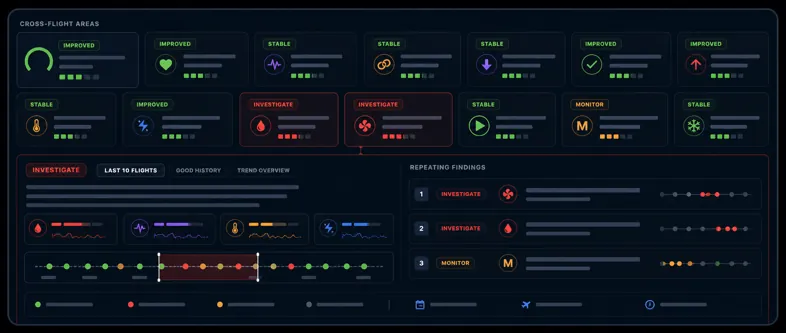
Full dashboard overview with annotated review areas
1

Flight selector and scope

Use the selected-flight row to confirm aircraft, date, monitor source, and duration. Scope controls switch between overview and deeper review modes when available.

2

Health summary cards

Cards rank where to look first: Sensors, Oil, CHT, EGT Balance, EGT Rhythm, Cooling, Electrical, and other enabled monitors. They are triage cues, not diagnoses.

3

Operating context

Context cards identify things such as ROP/LOP operation, power changes, or pattern work. These can explain why a temperature movement is normal or suspicious.

4

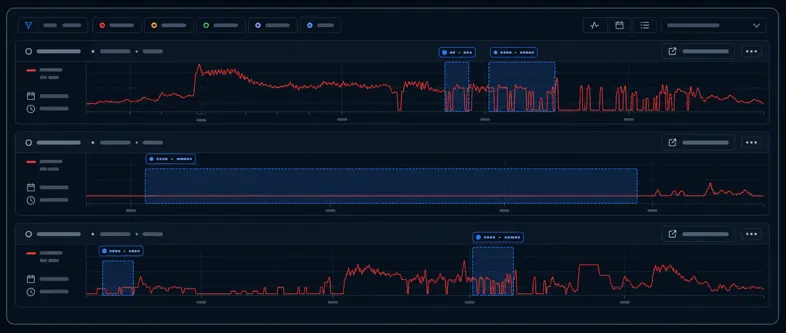
Key Parameters Over Time

The graph is the evidence panel. Use it to confirm whether a card reflects a real pattern, a short transient, a phase-specific event, or noisy data.

5

Review Context panel

This panel explains the selected finding, possible causes, confidence, and supporting evidence. Read it after you have looked at the graph.

6

Cylinder Detail

Use cylinder detail to see whether CHT and EGT behavior belongs to one cylinder, a pair, one engine side, or the whole engine.

Step 5

Use Graph Explorer to isolate a window of operation.

Do not stop at the score card. The graph is where you check whether a finding makes sense in time, phase, and sensor context. The goal is to narrow the view until the important traces are readable, then compare what changed before, during, and after the window.

  1. Set the phase filter to Full flight first so you can see the whole shape.
  2. Open Metric data traces and leave on only the sensors that answer the question.
  3. Drag across the graph to zoom into the takeoff, climb, cruise, descent, or finding window you want to inspect.
  4. Compare traces from related sensors, such as CHT against EGT, fuel flow, RPM, manifold pressure, oil pressure, or bus voltage.
  5. Use marker details and finding windows to connect the visible trace movement to the Review Context explanation.
  6. Reset zoom before moving to a different finding so you do not lose the full-flight context.

Good graph question

Instead of asking “why is this card amber?”, ask “during this phase, did the flagged sensor move by itself, or did related power, mixture, temperature, or electrical traces move at the same time?”

Graph Explorer with Metric data traces expanded and a drag-to-zoom selection on the engine temperature graph
This view shows the workflow: open Metric data traces, choose which channels stay visible, then drag across the graph to zoom into the exact operating window you want to inspect.

Step 6

Read findings as a review queue.

A finding is a prompt to inspect evidence. The strongest findings usually have a clear time window, visible trace behavior, phase context, and enough clean data to support confidence.

Title and severity

The title names the review cue. Severity tells you how quickly to look, not what maintenance action to take.

Possible causes

Cause percentages are ranked hypotheses. Use them to guide inspection questions, not as final answers.

Evidence and confidence

Confidence depends on signal strength, phase context, and sensor quality. Low confidence means review carefully.

Show full review

Expand the finding when you need the longer explanation, supporting windows, and related flights.

Review context screenshot showing finding details and supporting information
The Review Context panel is the bridge between the score cards and the trace evidence. Use it to decide what to inspect next.

Step 7

Replay the flight in a cockpit-style view.

Playback is useful when you want to review engine data in a format that feels closer to how pilots experience the flight. Instead of reading only chart traces, you can replay the log alongside familiar instrument-style displays and position context.

  1. Open Playback after you have selected the flight you want to review.
  2. Use the cockpit-style instrument view to watch engine, flight, and position data move together over time.
  3. Use the map and timeline to connect engine behavior to where the aircraft was in the flight.
  4. When available in the log, use AHRS and Airdata channels to add attitude, altitude, speed, and other flight-state context.
  5. Return to Graph Explorer when you need precise trace comparison or zoomed evidence for a specific window.

When Playback helps most

Use Playback when the question depends on pilot context: takeoff flow, climb behavior, descent setup, maneuvering, position over the ground, or whether engine changes line up with flight-state changes.

Playback page with cockpit-style instruments, map position, flight timeline, and engine monitor data
Playback gives pilots a familiar review format: cockpit-style instruments, map/position data, timeline context, and AHRS/Airdata when those channels are present in the uploaded log.

Step 9

Generate a PDF report for your mechanic to review.

Once you have checked the dashboard cards, graph evidence, findings, and flight context, generate a PDF report to share the review in a format that is easier to discuss, save, or attach to maintenance records.

  1. Open the reviewed flight and confirm the aircraft, date, duration, and monitor source are correct.
  2. Inspect the graph and Review Context panel for the findings you want your mechanic to see.
  3. Check Trends or prior flights if the question is whether the behavior repeats.
  4. Click Download PDF to generate a report packet from the current review.
  5. Send the PDF with the original log file or aircraft notes when your mechanic needs the source data too.

How to use the report

Treat the PDF as an evidence packet for a maintenance conversation. It organizes findings, context, charts, and advisory notes, but it does not determine airworthiness or replace inspection, logbooks, service data, or mechanic judgment.

Calmer conversations from better engine evidence.

AlaryIQ turns engine-monitor logs into readable review notes, grounded in the traces, phases, and data quality behind each cue.

AlaryIQ engine analytics interface displayed on a laptop inside an aircraft hangar

Why AlaryIQ exists

Engine monitor exports contain a lot of truth, but not much explanation. AlaryIQ organizes temperatures, fuel flow, electrical behavior, flight phases, and sensor confidence into a clearer story of how the engine operated.

AI, held accountable

Deterministic detectors keep the AI aligned.

AlaryIQ does not simply feed raw engine-monitor logs into AI and ask for an opinion. Each flight is first reviewed by deterministic detectors that look for defined patterns in phase of flight, sensor quality, CHT, EGT, cooling behavior, oil, electrical, fuel flow, cylinder trends, and other review cues.

Those detector outputs become a structured evidence packet. The AI Analysis Summary is generated from that packet, not from raw rows alone, so the summary stays grounded, repeatable, and advisory.

  1. 01 Detect

    Defined checks identify operating context, data quality, anomalies, and review cues.

  2. 02 Bind

    The evidence packet carries findings, windows, confidence, and caveats forward.

  3. 03 Translate

    AI turns bounded evidence into plain English without becoming the source of truth.

The detectors are the harness. The AI is the translator.

How AlaryIQ works

01

Upload log

Import engine-monitor logs in common formats. We never alter your data.

02

Normalize channels

We sync time, standardize units, and flag data quality issues so you know what is reliable.

03

Review cues

AlaryIQ runs each log through over 20 detection algorithms to surface anomalies, data-quality concerns, and other important review cues within phase context and benchmarks.

04

Share report

Generate clear review notes with traces, context, and quality indicators as a PDF or shareable link. Share with confidence.

Built around careful boundaries.

AlaryIQ helps turn engine data into clearer review context while keeping inspection, records, and maintenance decisions where they belong: with qualified people.

Evidence stays close

Every cue should point back to the measured behavior, time window, and source channel behind it.

Context changes the meaning

Climb, cruise, descent, and ground operations are treated differently because engines are operated differently.

People make the call

The product supports experienced review; it does not approve maintenance, determine airworthiness, or replace documentation.

Aircraft engine compartment with exposed cylinders, ignition leads, and firewall-forward systems

Bring the log, keep the judgment.

Use AlaryIQ to organize the review conversation around what the data actually shows, what context matters, and what a qualified person should inspect next.

Contact

Keep up with AlaryIQ as it grows.

Fill out the form below to hear about app updates, supported monitor formats, and early access opportunities as they become available.

Get notified when there is something worth seeing.

Share a few details so future updates can be useful: what you fly, what monitor you use, and what you want AlaryIQ to help you review.

Detection Guide

How review cues are detected.

Reference for how AlaryIQ detections work, what they look for, and how to evaluate them in context.

Loading detection guide

Reading the detection guide JSON.

Loading Flight

Preparing selected log

Opening the engine-monitor source and preparing the dashboard.

Aircraft
--
Monitor
--
Source
--
  1. Parse log
  2. Review traces
  3. Draw dashboard

Overall

-- Loading

Sensors

--/100 Checking probe quality

Oil System

--/100 Checking oil temp and pressure

CHT Health

--/100 Analyzing CHT data

EGT Balance

--/100 Checking EGT balance

EGT Rhythm

--/100 Checking EGT stability

CHT/EGT Pairing

--/100 Pairing CHT and EGT movement

Divergence

--/100 Checking transient cylinder split

Descent EGT Dropout

--/100 Checking low-power descent EGT drops

Induction Leak

--/100 Checking lean power-loss cues

Cooling

--/100 Comparing CHT to power and airflow

Cooling Rate

--/100 Checking CHT drop rate

Start Charge

--/100 Checking start recovery

Electrical

--/100 Analyzing bus voltage

Key Parameters Over Time

Metric data traces Show or hide graph channels
Click/drag to zoom

Cylinder Detail

CHT, EGT, and related flags

Engine Triage

Primary finding

Review queue

Supporting checks

Cylinder Detail

CHT, EGT, and related flags

Flight Profile

Operational context for the selected log

Metric data traces Show or hide graph channels
Click/drag to zoom

Raw Data

Parsed flight log inspection

Channel Inventory

Normalized channels

Channel Unit Min Avg Max Missing Scoring

Data Quality

Parser checks

    Parsed Rows Preview

    Normalized sample

    Selected aircraft

    Fleet Click/drag to reorder aircraft

    Aircraft flight history

    Trend inclusion
    Flags Trend AI Summary Report Actions

    Aircraft upload history

    Raw file Status Flights Latest job Size Uploaded Hash Action
    Coming Soon

    Maintenance tracking is being prepared for this aircraft workspace.

    Flight 1 Selected

    May 18, 2024

    KAVL to KRDU · Cruise phase · 45 min

    VS

    Flight 2 Reference

    May 4, 2024

    KAVL to KCHO · Cruise phase · 45 min

    Comparison Summary

    Engine performance was similar overall. Notable differences appear in CHTs on cylinders #3 and #6 and EGT spread.

    Engine RPM and Manifold Pressure

    Reference overlay by matched cruise phase

    Avg RPM2440 vs 2410+30 RPM
    Avg MAP22.0 vs 21.2+0.8 inHg
    Avg EGT Spread102 vs 86°F+16°F
    Peak CHT412 vs 370°F+42°F
    Fuel Flow13.6 vs 13.2+0.4 GPH

    Workspace

    Coming into focus

    The first build focuses on the report and comparison workflows. This area is ready for aircraft-level trends, symptom assistant, raw-file review, and operator note screens.